Access your Flexy’s web interface:
NTP
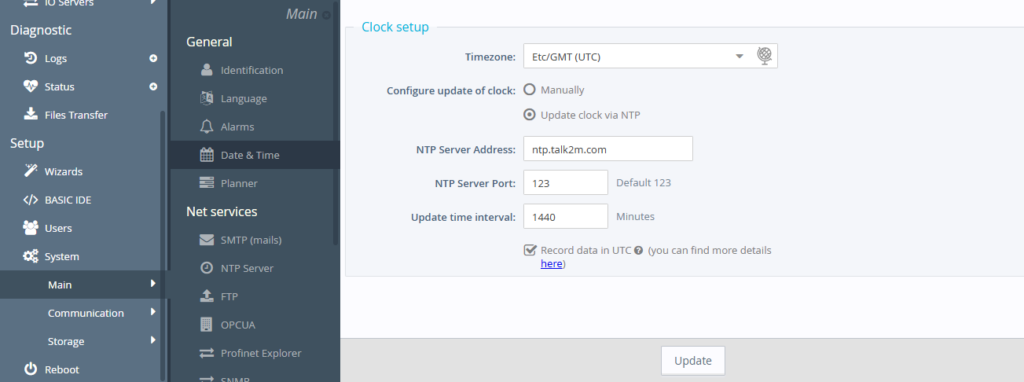
Once logged in, navigate through the menu on the left side as follows: “Setup” –> “Main” –> “Date and Time”.
Choose the time zone and select “Update clock via NTP”, set the update time interval to 1440 minutes and enable “Record data in UTC”. Once finished click the “Update” button.
Tags Configuration
IMPORTANT: Do not use accented characters for tag names (à, ò, è, ü, …) because the Ewon API does not support tag names with these characters. The maximum length managed by Rilheva is 50 characters.
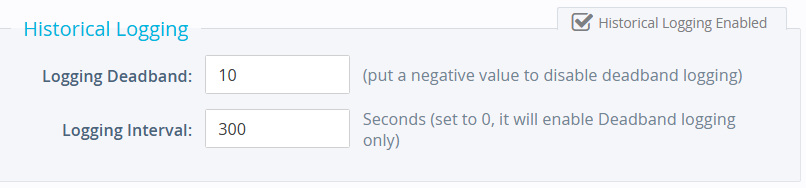
You can send a tag to Rilheva by enabling the “Historical Logging” feature in “Tags” –> “Values” –> in the video set “Setup Mode” –> select a tag and click “Edit” –> “Historical Logging”.

You can choose to send the tag to Rilheva whenever the tag changes by the Logging Deadband and/or send the tag to Rilheva each value “Logging Interval” (in seconds).
IMPORTANT: Don’t forget to assign each tag to one or more tag groups.

Attivazione Mailbox dati
Click “Setup” –> “System” –> “Main” –> “Data Management” and select Talk2M API in the top right menu:
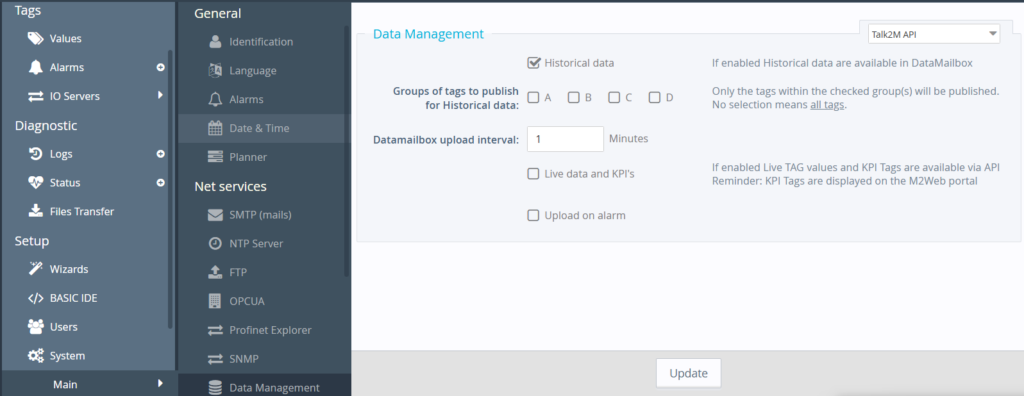
Select the tag groups you want to send to Rilheva (you must assign each tag to the same group you select on this screen if you want to send tag values to Rilheva). Choose 1 minute as the Datamailbox upload interval and once finished click “Update” to save the settings.
Was this helpful?
0 / 0